

What Is OSD? Meaning & Common Tech Uses
If you have seen the abbreviation OSD while adjusting a monitor, deploying Windows computers, managing a storage cluster, or reading software documentation, you may have wondered what it actually means. The challenge is that OSD does not have one universal definition across technology. Its meaning changes according to the device, software platform, or IT environment where the abbreviation appears. For most everyday users, OSD means On-Screen Display, which is the menu used to adjust monitor or television settings. IT professionals may instead use OSD for Operating System Deployment, while storage administrators may recognize it as Object Storage Daemon or Object Storage Device. Understanding the context is therefore essential before deciding which OSD meaning applies.
The different meanings may seem unrelated, but each represents an important concept within modern computing and digital technology. An on-screen display helps users control visual hardware, operating system deployment helps IT teams configure computers efficiently, and storage-related OSDs support large-scale distributed data environments. The abbreviation can also appear in open-source software discussions as the Open Source Definition. Knowing these distinctions is useful when reading documentation, troubleshooting equipment, communicating with technical support, or researching unfamiliar technology. This guide explains what OSD means, how the most common forms work, and where you are likely to encounter them. It also covers common OSD settings, storage terminology, deployment workflows, troubleshooting issues, and practical examples.
What Is OSD? Understanding the Meaning
OSD is an acronym with several meanings in computing, electronics, software, and data storage, so its full form depends heavily on context. The most familiar definition for consumers is On-Screen Display, which refers to menus or information shown directly over an image on a monitor, television, camera, or other display. These menus allow users to control settings without installing separate software. When someone says to “open the OSD” while troubleshooting a monitor, they almost always mean the built-in display settings menu. Common controls include brightness, contrast, color temperature, input source, refresh-related options, and picture modes. This is the OSD meaning most people encounter during everyday device use.
In enterprise IT, OSD commonly refers to Operating System Deployment, which is the process of installing and configuring operating systems on computers. Instead of manually installing Windows and applications on every new workstation, administrators can use deployment tools to automate much of the work. An OSD process may include preparing an operating system image, configuring storage partitions, installing drivers, applying settings, adding applications, and registering the device with organizational systems. This approach becomes especially valuable when companies need to configure tens, hundreds, or thousands of computers. Automated OS deployment improves consistency because machines can follow the same approved configuration. As a result, OSD has a completely different meaning when discussed by desktop engineers or system administrators.
Storage infrastructure introduces another major definition because OSD can stand for Object Storage Daemon, particularly within Ceph environments. An object storage daemon is a software process responsible for storing and managing data within a distributed storage cluster. These daemons help handle reading, writing, replication, recovery, rebalancing, and communication related to stored objects. In large clusters, multiple OSDs work together so data can remain available even when individual storage components experience problems. Older or broader storage documentation may also use OSD to mean Object Storage Device, referring to a logical or physical storage resource that handles data as objects. Therefore, storage context must be examined carefully before interpreting the abbreviation.
Another computing-related use is the Open Source Definition, commonly abbreviated as OSD in discussions about open-source licensing. Rather than referring to a device or software process, this OSD describes the criteria used to determine whether software licensing terms qualify as open source. Developers, legal teams, software companies, and open-source communities may encounter this meaning when evaluating licenses and redistribution rights. The Open Source Definition addresses principles such as source code availability, redistribution, modification, and technology-neutral licensing. This use appears less frequently in everyday consumer technology discussions but is important within software development communities. When OSD appears near terms such as license, open source, redistribution, or source code, this is usually the intended meaning.
The easiest way to understand an unfamiliar OSD reference is to look at the words surrounding it instead of trying to memorize one definition. If the discussion involves monitor buttons, brightness, HDMI, picture modes, or display calibration, OSD probably means On-Screen Display. If it includes Windows installation, boot images, task sequences, drivers, or enterprise computers, Operating System Deployment is more likely. Words such as Ceph, storage cluster, replication, disks, objects, or recovery usually indicate Object Storage Daemon or Object Storage Device. References to licensing and open-source software may point toward Open Source Definition. Recognizing these contextual signals makes the OSD acronym much easier to understand across different technology environments.
OSD as On-Screen Display: The Most Common Meaning
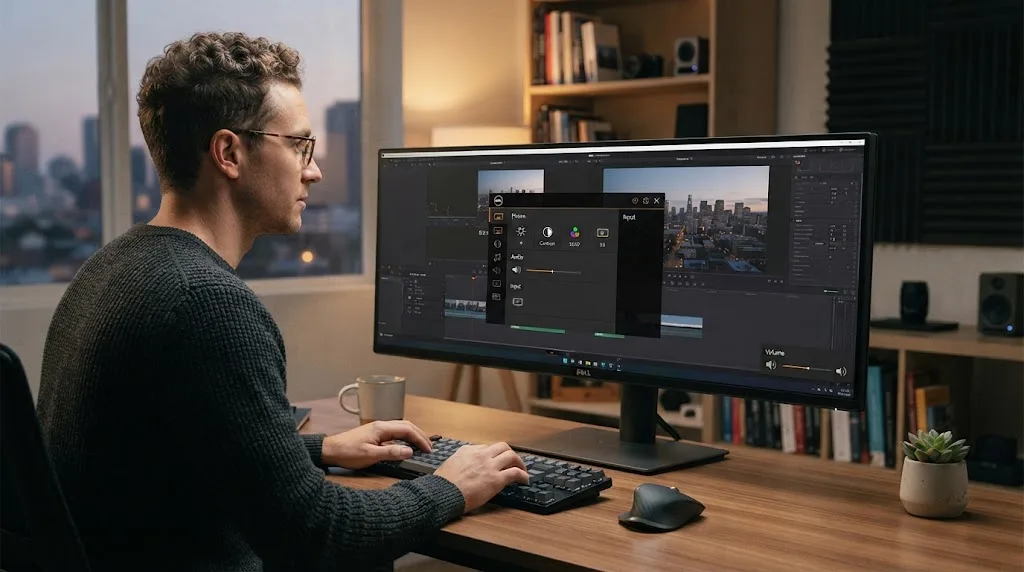
An On-Screen Display is a graphical menu or information layer that appears directly over the content shown on a screen. It allows users to control hardware settings without relying entirely on an operating system or external application. Monitors commonly provide physical buttons, touch-sensitive controls, a small joystick, or a remote control that opens the OSD menu. Once opened, users can move between categories and adjust how the display behaves. Because these controls are built into the display hardware, they usually remain available regardless of whether the connected computer is running Windows, macOS, Linux, or another operating system. This independence is one of the defining characteristics of a monitor OSD.
The OSD menu commonly includes brightness and contrast settings because these have a direct effect on how comfortable and clear the screen appears. Brightness changes the intensity of the display’s illumination, while contrast influences the difference between brighter and darker areas. Many modern displays also include black-level controls, gamma adjustments, dynamic contrast, local dimming options, and predefined picture modes. Users may select modes designed for gaming, movies, reading, professional work, or reduced blue light. Some monitors expose only basic controls, while professional models provide much more detailed calibration options. Understanding these OSD settings can help users improve visibility without unnecessarily changing settings inside their operating system.
Color controls are another important part of an on-screen display, especially for creative professionals and users who care about image accuracy. A typical monitor OSD may offer color temperature choices such as warm, normal, cool, or custom RGB settings. More advanced displays can provide gamma presets, saturation controls, individual red, green, and blue adjustments, or selectable color spaces. Photographers, video editors, designers, and content creators may combine these hardware controls with professional calibration equipment for greater accuracy. Ordinary users do not usually need to change every available value. Choosing an appropriate preset and maintaining comfortable brightness often provides a better experience than repeatedly altering advanced settings without understanding their effects.
Input selection is another frequently used OSD feature because modern monitors often include multiple video connections. A single display might provide HDMI, DisplayPort, USB-C, and other input options for connecting several devices. Through the OSD screen menu, users can select which source should currently appear on the display. Some monitors detect active inputs automatically, while others allow users to assign shortcuts for faster switching. Displays with built-in KVM functionality may provide additional OSD options for sharing a keyboard and mouse between connected computers. These features have become increasingly valuable as people use work laptops, personal desktops, gaming systems, and other devices with a single monitor.
Gaming monitors have expanded the role of OSD considerably by adding performance-focused features that go beyond traditional picture adjustments. Depending on the monitor, users may find refresh-rate indicators, adaptive synchronization controls, response-time modes, crosshair overlays, black equalizers, frame-rate displays, and gaming presets. Some screens allow users to save multiple configurations for different games or applications. These features can be convenient, but aggressive response-time or enhancement settings sometimes introduce visible artifacts, so maximum values are not always best. The ideal configuration depends on the specific display, connected hardware, content, and personal preferences. Understanding the monitor OSD allows users to adjust performance intentionally rather than relying exclusively on factory settings.
How On-Screen Display Technology Works
The OSD system in a monitor or television is generally controlled by firmware built into the device rather than by the connected computer’s operating system. When a user presses an OSD button or moves the monitor’s control joystick, the display firmware creates a menu layer and places it over the incoming video signal. The menu can therefore appear even when the computer is booting, displaying an error, or not producing a normal desktop environment. This explains why the OSD may remain accessible when Windows settings cannot be reached. It also makes the OSD valuable for troubleshooting because users can determine whether the monitor itself is responding properly. Hardware-level control separates display configuration from software-level display settings.
Modern OSD interfaces vary substantially between manufacturers and product categories. Entry-level monitors may provide a simple text-based menu containing only basic picture, input, audio, and system controls. Gaming and professional displays may include polished graphical interfaces with icons, nested menus, configurable shortcuts, and real-time performance information. Some manufacturers also provide desktop applications that communicate with the monitor so users can change OSD settings through software. However, the underlying settings are often still stored and applied by the display hardware itself. Whether controlled through physical buttons or an application, these adjustments influence how the monitor processes incoming video. A well-designed OSD therefore makes complex display functions easier for users to understand.
OSD settings may interact with features provided by the graphics card and operating system, which sometimes causes confusion during troubleshooting. For example, screen resolution and refresh rate are commonly selected through Windows, macOS, or graphics driver settings rather than directly through the monitor’s basic picture menu. Meanwhile, brightness, color presets, response time, and certain HDR behavior may be controlled through the OSD. Some capabilities require both sides to be configured correctly before they work as expected. Adaptive synchronization, high refresh rates, HDR, and particular color formats can depend on the monitor, cable, graphics hardware, operating system, and application. Understanding where a setting is controlled helps prevent unnecessary changes in the wrong menu.
Many displays also use OSD notifications to communicate temporary information rather than simply offering configuration menus. A monitor may briefly display the current input when a new device is connected or show an alert when no video signal is detected. Other messages may indicate unsupported resolutions, HDR activation, volume changes, refresh modes, or locked controls. These notifications are useful because the display can communicate its status independently of the attached computer. However, repeated OSD warnings can also reveal compatibility or connection problems that need investigation. A “no signal” OSD message, for example, indicates that the monitor is powered and functioning sufficiently to generate its own menu but is not receiving usable video from the selected input.
An OSD usually includes system settings that control the menu itself, including language, position, transparency, rotation, and timeout duration. The OSD timeout determines how long the menu remains visible when the user stops interacting with it. Some displays also include an OSD lock designed to prevent accidental changes in public areas, offices, classrooms, gaming environments, or shared workspaces. Once enabled, the controls may appear unresponsive until a specific button combination or long press unlocks them. This behavior occasionally causes users to believe that the monitor is malfunctioning. Checking for an OSD locked message or lock icon can therefore be an important troubleshooting step before resetting the display or replacing hardware.
OSD as Operating System Deployment in IT
In information technology departments, Operating System Deployment describes the structured process of installing an operating system and related configurations onto computers. OSD is especially important for organizations that regularly prepare laptops, desktops, virtual machines, kiosks, laboratory computers, or other managed endpoints. Installing each device manually would require technicians to repeat the same steps, increasing both labor and the possibility of inconsistent configurations. An automated deployment workflow can install Windows, apply drivers, configure settings, and add required software using predefined processes. This allows IT teams to produce computers that follow organizational standards more reliably. Operating system deployment therefore combines automation, configuration management, imaging, networking, security, and endpoint administration.
An OSD workflow often begins with preparing an operating system image or installation source. The image contains the core files necessary to install the selected operating system, while additional packages may supply drivers, applications, scripts, security policies, and device-specific configurations. Administrators then define the steps that should occur during deployment, sometimes through a structured task sequence. A task sequence can automate processes such as partitioning the drive, applying the operating system, installing hardware drivers, joining organizational services, and installing approved applications. Different device types may use separate configurations when their hardware or job requirements differ. Standardizing these workflows reduces repetitive manual work and helps make deployments easier to audit and troubleshoot.
Network boot technologies can play an important role in enterprise OSD environments because computers may need to begin deployment before a full operating system exists on the device. PXE boot, for example, allows compatible computers to obtain boot information through the network and start a deployment environment. From there, administrators can deliver boot images, operating system files, drivers, and configuration packages from network infrastructure. This approach is useful when large numbers of computers need to be provisioned in offices, schools, laboratories, or corporate IT staging areas. Other deployment approaches can use USB media, cloud-based provisioning, or existing operating systems. The most suitable method depends on network design, device location, security requirements, and administrative tools.
OSD also supports hardware refresh projects in which companies replace older computers with newer models while trying to preserve a consistent user experience. Instead of configuring each replacement device from scratch, administrators can create standardized deployment procedures that install the required operating system and applications. User data may be migrated separately or synchronized through organizational storage and identity services. Drivers can be selected according to hardware models, while security tools and management agents can be installed automatically. This reduces the amount of hands-on technician work required during large replacement cycles. A well-planned Operating System Deployment strategy can therefore shorten device preparation time while improving consistency across an organization’s endpoint environment.
Modern endpoint management is gradually changing how operating systems are provisioned, particularly as organizations adopt remote work and cloud management. Traditional imaging remains useful in many environments, but businesses increasingly combine it with internet-based provisioning, automated enrollment, identity-driven configuration, and modern device management. The OSD concept remains relevant because organizations still need repeatable ways to transform new or reset hardware into secure, usable business devices. What changes is how much of that process depends on local infrastructure versus cloud services. IT teams should therefore think about Operating System Deployment as a broader lifecycle process rather than simply copying an image onto a disk. Successful OSD includes planning, automation, security, application delivery, testing, and ongoing maintenance.
OSD in Storage: Object Storage Daemon and Object Storage Device
In distributed storage environments, particularly Ceph, OSD commonly means Object Storage Daemon. A daemon is a background software process that performs specific system functions without requiring continuous direct interaction from a user. Ceph OSD processes are responsible for storing data and participating in important operations within the storage cluster. Rather than treating data exclusively as traditional files arranged within folders, object storage represents information as objects containing data and associated metadata. Multiple OSDs can operate across several storage servers, giving the cluster the ability to distribute information across available hardware. This architecture helps make large storage systems scalable while avoiding dependence on one central storage device.
A Ceph OSD normally manages storage associated with a physical or logical device, such as an HDD or SSD. When data enters the cluster, objects are distributed according to the cluster’s data placement rules rather than manually assigned to individual disks by users. OSDs participate in reading and writing those objects and help maintain the required level of redundancy. If data is replicated, copies can be stored across multiple storage locations so the failure of one component does not necessarily make the information unavailable. This distributed model is one reason Ceph is used in environments requiring scalable storage. However, reliable operation still depends on appropriate hardware, networking, configuration, monitoring, and redundancy planning.
OSDs also contribute to recovery and rebalancing when the condition of the storage cluster changes. Suppose a storage disk fails and the OSD associated with it becomes unavailable. The cluster can identify that the expected storage component is no longer operating and begin processes designed to restore the required data protection using remaining resources. Similarly, when administrators add additional capacity, information may be redistributed to use the expanded storage environment more effectively. These processes help distributed storage systems continue operating as hardware changes over time. Administrators still need to monitor capacity and cluster health carefully because recovery consumes network, CPU, and disk resources. OSD status is therefore one of the important indicators examined during Ceph troubleshooting.
The term Object Storage Device is another storage-related expansion of OSD and can create confusion because it looks extremely similar to Object Storage Daemon. An Object Storage Device generally refers to a physical or logical storage component that manages information as objects rather than exposing only traditional block-level storage behavior. Different storage systems and historical documentation may use the term in slightly different architectural ways. In Ceph conversations, OSD usually refers specifically to the Object Storage Daemon software process, making context important. Other distributed file systems and storage technologies may use OSD terminology differently. Checking the documentation for the technology being discussed is therefore safer than assuming that every storage-related OSD has precisely the same definition.
For someone unfamiliar with distributed infrastructure, the difference can be simplified by thinking of an Object Storage Daemon as software performing storage work and an Object Storage Device as the storage resource or architectural device concept. Real implementations can be more nuanced, so this simplified explanation should be used primarily as a starting point. Storage administrators often discuss OSD counts, OSD failures, OSD capacity, OSD performance, and OSD recovery when managing clusters. Those phrases are clues that the abbreviation is being used within a distributed storage environment rather than a monitor or Windows deployment context. Once the surrounding technology is identified, the intended OSD meaning becomes much easier to understand. Context remains the most reliable guide.
Other Common Technology Meanings of OSD
OSD can also stand for the Open Source Definition, an important concept within software licensing and open-source development. This definition establishes criteria used to determine whether software distribution terms qualify as open source. The concept goes beyond simply being able to view source code because open-source licensing also involves rights related to modification, redistribution, and software use. Developers may encounter the OSD while comparing licenses or deciding how software can legally be shared. Companies using third-party open-source components may also need to understand licensing obligations before incorporating code into commercial products. In this context, OSD is about software rights and licensing principles rather than displays, computer deployment, or storage infrastructure.
The Open Source Definition meaning becomes easier to identify when OSD appears next to terms such as software license, source code, redistribution, derivative works, licensing approval, or open-source community. It may appear in technical policy discussions, developer documentation, software governance, and conversations about whether a particular license qualifies as open source. This is a more specialized use than On-Screen Display, so consumers are less likely to encounter it when configuring hardware. Nevertheless, software developers and technology companies may see it frequently. The context is usually obvious because discussions focus on licensing rather than hardware configuration. Recognizing the abbreviation prevents confusion with Operating System Deployment, which also appears commonly in enterprise computing.
The abbreviation may occasionally be used in specialized products or industries with meanings beyond the major definitions covered here. Acronyms often develop independently within different technical fields, organizations, and software platforms, which means a three-letter abbreviation can represent several unrelated concepts. A vendor may even create internal terminology that uses OSD differently from standard industry usage. For that reason, users should avoid assuming that the first definition found in a search engine automatically applies to every situation. Product manuals, error messages, menu labels, and surrounding terminology provide valuable contextual clues. When accuracy matters, checking how the specific manufacturer or software developer defines OSD is usually the safest approach.
Capitalization and presentation may also provide subtle clues, although they should not be treated as definitive. A monitor may display phrases such as “OSD Menu,” “OSD Lock,” or “OSD Timeout,” strongly suggesting On-Screen Display. Enterprise administration documentation may use phrases such as “OSD task sequence,” “OSD image,” or “OSD deployment,” which point toward Operating System Deployment. Storage administrators may discuss “OSD nodes,” “OSD daemons,” “OSD disks,” or “OSD health,” indicating distributed storage. Open-source discussions may refer to “the OSD” as a specific definition related to licensing. Learning these common word combinations is often more useful than memorizing every possible expansion of the acronym.
Search intent also matters when creating or reading content about OSD. Someone searching “what is OSD on a monitor” wants information about screen menus, while a person searching “OSD deployment” probably needs enterprise IT guidance. A query such as “Ceph OSD down” is clearly related to distributed storage troubleshooting. Similarly, “OSD open source” points toward licensing rather than hardware. Writers, support teams, and website owners should therefore define the acronym early instead of assuming every reader understands the intended meaning. Clear definitions improve user experience and prevent technical explanations from becoming unnecessarily confusing. For SEO content, addressing the major OSD meanings also helps satisfy broader informational intent without forcing unrelated definitions into the same explanation.
Common OSD Problems and Troubleshooting Tips
One of the most common monitor-related OSD issues is an OSD locked message that prevents users from changing display settings. This usually means the monitor’s control lock was intentionally or accidentally activated rather than indicating a hardware failure. Many displays allow users to lock physical buttons so settings cannot be altered in classrooms, offices, public areas, or shared environments. Unlocking procedures vary by manufacturer and model, but they often involve holding a particular menu button or joystick position for several seconds. Users should check the monitor’s manual before randomly pressing combinations because controls differ between products. Once unlocked, brightness, color, input, and other OSD settings should become accessible again.
Another common problem occurs when the OSD menu appears normally but the monitor displays “No Signal.” This situation usually means the screen itself has power and can generate its internal interface, but usable video is not reaching the selected input. Users should confirm that the correct HDMI, DisplayPort, USB-C, or other source is selected through the input menu. Checking cable connections and testing another cable or port can help isolate connection problems. The connected computer should also be verified to ensure that it is powered on and producing video output. Because the OSD is generated independently by the monitor, its appearance can actually help separate display hardware problems from incoming signal problems.
Unexpected OSD menus can sometimes appear when monitor buttons are stuck, touch controls are malfunctioning, or physical controls are being pressed accidentally. Dust, mechanical damage, moisture, or a poorly positioned object may cause a button to remain active and repeatedly open the screen menu. Users can inspect the controls carefully and restart the monitor to determine whether the issue disappears. Restoring factory settings may help when unusual menu behavior is caused by configuration rather than hardware. However, persistent OSD movement or repeated button activation may indicate a physical control problem requiring service. Troubleshooting should begin with simple checks before assuming that the panel, graphics card, or entire computer needs replacement.
Operating System Deployment problems require an entirely different troubleshooting approach because they involve installation infrastructure rather than monitor settings. A deployment may fail because the target device cannot boot from the network, required content is unavailable, drivers are missing, storage cannot be partitioned, or a task sequence encounters an error. Administrators should identify the exact stage where the OSD process fails instead of restarting deployments repeatedly without diagnosis. Logs and deployment status information can usually provide more useful clues than a generic error screen. Network connectivity, boot configuration, driver compatibility, permissions, and image integrity should be reviewed systematically. Consistent documentation of successful and failed deployments can also make recurring OSD problems easier to identify.
Storage OSD problems likewise require context-specific investigation because an unavailable Object Storage Daemon can affect cluster health and data redundancy. Administrators should determine whether the problem comes from the daemon process, underlying disk, server, network connection, capacity condition, or another infrastructure component. Distributed storage systems are designed with failure in mind, but redundancy does not mean individual failures should be ignored indefinitely. Recovery operations can consume considerable storage and network resources, particularly in large clusters. Monitoring OSD health, capacity, latency, and failure patterns helps administrators identify degrading hardware before problems become more severe. The key lesson is that “OSD problem” means very different things depending on whether the discussion involves displays, deployment, or distributed storage.
Why Understanding OSD Matters in Modern Technology
Understanding the OSD acronym can save significant troubleshooting time because searching for the wrong meaning can lead users toward completely irrelevant instructions. A person dealing with an OSD locked monitor does not need documentation about Windows operating system deployment. Similarly, a storage administrator investigating a failed Ceph OSD gains nothing from guides explaining how to change monitor brightness. Technical acronyms are useful because they shorten communication within specialized communities, but they become confusing when the same letters are reused across unrelated technologies. Identifying the environment first makes technical research much more efficient. This simple habit is particularly useful for beginners who may assume every abbreviation has only one accepted expansion.
On-screen displays remain important as monitors become more sophisticated and expose a growing number of features directly through hardware controls. High refresh rates, HDR, adaptive synchronization, USB-C connectivity, KVM capabilities, color spaces, response-time controls, and picture presets all increase the amount of configuration available to users. A clear monitor OSD helps make those capabilities manageable without forcing users to install manufacturer software for every adjustment. Understanding the menu also helps users avoid unnecessary troubleshooting when a problem can be solved by changing an input or picture setting. As display technology continues evolving, hardware-level user interfaces will remain an important part of the overall experience. OSD knowledge is therefore useful even for nontechnical computer users.
Operating System Deployment remains equally relevant for businesses because endpoint environments continue to grow more complex. Organizations may support office desktops, remote laptops, specialized workstations, kiosks, shared devices, and virtual systems at the same time. Each device needs appropriate security controls, applications, identity configuration, and management policies before employees can use it safely. Automated OSD processes help IT departments build repeatable deployment workflows instead of depending on manual configuration. Modern cloud-based provisioning may change the tools involved, but the underlying goal remains consistent: prepare devices accurately and efficiently. Understanding OSD terminology is particularly valuable for anyone pursuing a career in desktop support, systems administration, endpoint management, or enterprise IT.
Object Storage Daemons demonstrate how the same abbreviation can refer to a much deeper infrastructure concept within modern cloud and data environments. Distributed storage allows organizations to combine many storage resources into systems capable of handling substantial amounts of information. OSD processes help coordinate how objects are stored, replicated, recovered, and redistributed within platforms such as Ceph. Professionals working with private clouds, virtualization, large-scale storage, or infrastructure platforms may therefore encounter OSD terminology regularly. Understanding the basic purpose of an Object Storage Daemon makes advanced documentation easier to follow. Even readers who never manage a storage cluster can benefit from recognizing that storage-related OSD terminology has nothing to do with screen menus.
Ultimately, the best answer to “What is OSD?” is that the abbreviation must be interpreted according to its technical context. On-Screen Display is the most common consumer meaning and refers to the built-in menu used to control a monitor or other visual device. Operating System Deployment describes automated processes for preparing computers in IT environments, while Object Storage Daemon is an important component of distributed storage systems such as Ceph. Object Storage Device is another storage-related expansion, and Open Source Definition appears in software licensing discussions. Remembering these major meanings is usually enough to understand most technology-related uses of OSD. When uncertainty remains, surrounding terminology and product documentation can quickly reveal the intended definition.
Frequently Asked Questions
What does OSD stand for?
OSD most commonly stands for On-Screen Display, especially when discussing monitors, televisions, cameras, and other visual devices. It can also mean Operating System Deployment, Object Storage Daemon, Object Storage Device, or Open Source Definition depending on the technical context.
What is OSD on a monitor?
OSD on a monitor is the built-in menu used to adjust settings such as brightness, contrast, color temperature, input source, picture mode, and other display options. It is usually opened using physical buttons, touch controls, or a joystick located on the monitor.
What does OSD locked mean?
OSD locked means the monitor’s on-screen menu controls have been disabled to prevent settings from being changed accidentally. The lock can usually be removed using a specific button press or control combination defined by the monitor manufacturer.
What does OSD mean in IT deployment?
In enterprise IT, OSD stands for Operating System Deployment. It refers to the process of automatically installing and configuring an operating system, drivers, applications, security tools, and other settings on computers.
What is an OSD in Ceph?
In Ceph, OSD stands for Object Storage Daemon, a software process responsible for storing data and participating in operations such as replication, recovery, rebalancing, reading, and writing. Multiple OSDs typically work together across storage servers within a distributed Ceph cluster.