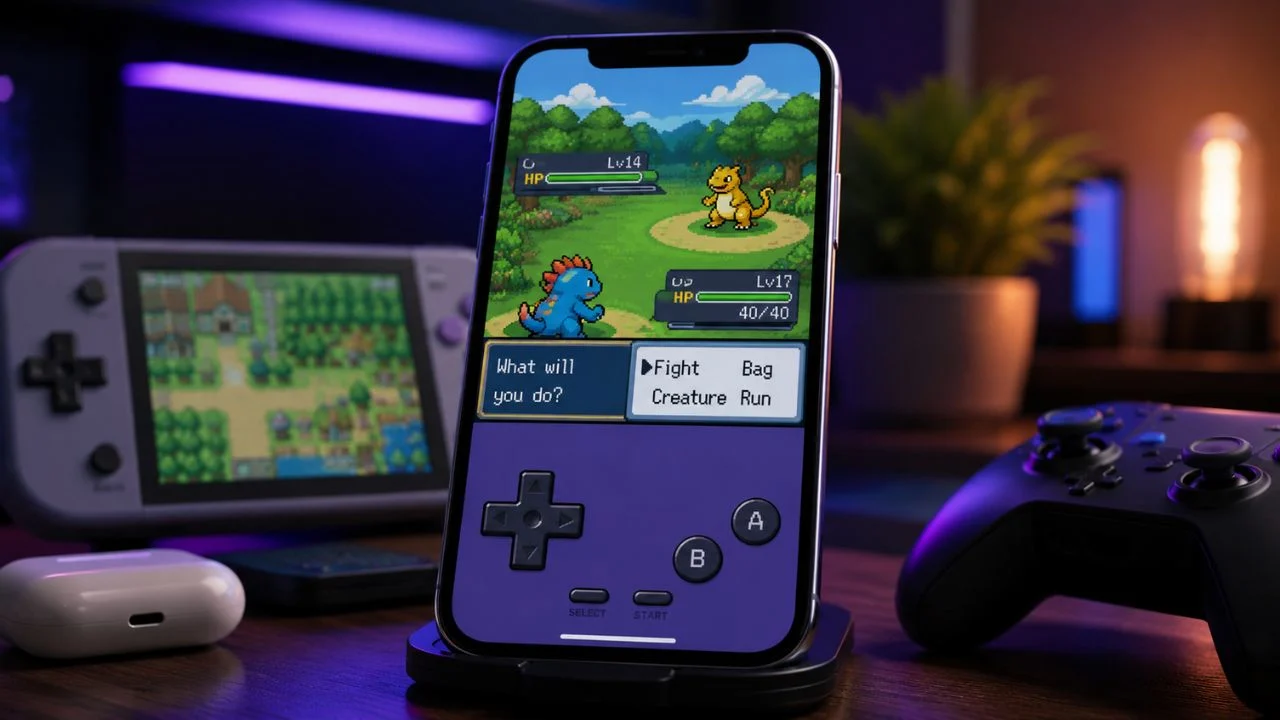

Playing classic Pokémon games on an iPhone is much easier than it used to be. Apple now permits retro game emulator apps on the App Store, so most users no longer need to jailbreak their devices, install unreliable certificates, or follow complicated computer-based installation methods. A suitable emulator can turn an iPhone into a convenient handheld system for legally backed-up retro games.
The best Pokémon emulator for iPhone depends on the generation you want to play. Delta is the simplest choice for Game Boy, Game Boy Color, Game Boy Advance, Nintendo DS, and selected Nintendo 64 games. RetroArch offers more settings and system support, while Folium targets players who want to experiment with Nintendo 3DS games on newer hardware.
Provenance is another useful multi-system option for users who want to organize a larger retro gaming library. It supports several Nintendo platforms alongside systems from other manufacturers. However, the additional choices and settings may make it less straightforward than Delta for someone who simply wants to play a classic Pokémon adventure.
This guide compares the top iOS emulator apps that currently work, the Pokémon generations they support, their most useful features, and their limitations. It also explains how to install an emulator safely, import your own game backups, connect a controller, protect saved progress, improve performance, and avoid fake emulator apps or illegal ROM websites.
What Is a Pokémon Emulator for iPhone?
A Pokémon emulator is an application that allows an iPhone to behave like an older gaming system. The app recreates the hardware and software environment of consoles such as the Game Boy, Game Boy Color, Game Boy Advance, Nintendo DS, or Nintendo 3DS. A compatible game file can then run inside that simulated environment.
The emulator does not usually contain Pokémon games. It provides the controls, graphics processing, audio, save system, and other technical functions needed to run a game file. Users must supply their own legally obtained game backups and, when required, compatible system files. Reputable emulators clearly explain that copyrighted games are not included.
Modern iPhone emulator apps can provide features that were not available on the original consoles. These may include save states, fast-forward controls, external-controller support, custom touchscreen skins, cheat-code support, cloud synchronization, video filters, game artwork, and automatic backup options.
Emulation quality depends on the console being recreated. Game Boy and Game Boy Advance titles generally require little processing power and can run smoothly on many iPhones. Nintendo DS games are more demanding, while 3DS emulation may produce slowdowns, audio problems, heat, crashes, or graphical errors on unsupported or older devices.
Quick List of the Best Pokémon Emulator Apps
Delta is the best overall Pokémon emulator for most iPhone users. It has a clean interface, simple game importing, attractive controller skins, save states, fast-forward controls, cheats, controller support, and synchronization through Google Drive or Dropbox. It supports the main Nintendo handheld systems used for Pokémon generations one through five.
RetroArch is the strongest choice for advanced users who want detailed control over their gaming experience. It supports Game Boy, Game Boy Color, Game Boy Advance, Nintendo DS, Nintendo 64, Pokémon Mini, and many other systems through emulator cores. It also includes shaders, rewinding, remapping, achievements, and advanced latency settings.
Folium is the main option for people interested in Nintendo 3DS Pokémon games. It supports the 3DS alongside Game Boy, Game Boy Color, Game Boy Advance, and Nintendo DS. However, 3DS emulation is demanding, and users should expect performance to vary depending on the game, iPhone model, settings, and app version.
Provenance is suitable for users who want one app for a broad retro game collection. It supports numerous Nintendo platforms, including Game Boy systems, Nintendo DS, Nintendo 64, Pokémon Mini, and 3DS. Its large system library and customization options are useful, although its interface may require more learning than Delta.
Delta: Best Pokémon Emulator for Most iPhone Users
Delta is usually the easiest recommendation for anyone searching for a reliable Pokémon emulator on iPhone. It is designed specifically for Apple devices and provides a polished library that automatically organizes imported games. The app supports Game Boy, Game Boy Color, Game Boy Advance, Nintendo DS, Nintendo 64, NES, and SNES systems.
This support covers many of the most popular Pokémon releases, including the original Game Boy adventures, the Game Boy Color sequels, Game Boy Advance titles, and Nintendo DS generations. It can also run compatible Nintendo 64 spin-offs, allowing users to build a broader Pokémon collection within one application.
Delta includes save states that let players save their progress at almost any moment instead of relying entirely on an in-game save point. It automatically creates backup states and allows important saves to be locked. This can be valuable during difficult battles, long routes, legendary encounters, or sections where an accidental mistake could waste progress.
Other features include cheat-code support, fast-forward controls, custom controller skins, game artwork, external controllers, keyboards, microphone support for Nintendo DS games, and Delta Sync. The app can synchronize games, save files, controller settings, cheats, and supported data through Google Drive or Dropbox.
Why Delta Is the Best Starting Point
Delta feels more approachable than many traditional emulator frontends. Users can normally import a compatible game file through the Files app, select it, and begin playing without navigating through multiple technical menus. The touchscreen controls automatically change to match the selected gaming system.
Its visual library is another major advantage. Instead of showing only filenames and folders, Delta can display recognizable game artwork. Users can change incorrect artwork or add their own images, making it easier to separate different Pokémon versions, generations, fan translations, and personal game backups.
The default touchscreen controls work well for slower role-playing games because Pokémon rarely requires constant rapid button combinations. Players can walk, open menus, select moves, and manage items comfortably. An external controller still provides a more natural experience for Nintendo 64 spin-offs or games that require more precise movement.
Delta’s main limitation is that it does not cover every console. It does not offer the same number of systems or advanced video options as RetroArch, and it is not intended for Nintendo 3DS Pokémon games. Players mainly interested in generations one through five will find it more than sufficient.
RetroArch: Best for Advanced Emulator Users
RetroArch is a free, open-source frontend that uses separate components called cores to emulate different systems. Its iPhone version supports Nintendo DS, Game Boy, Game Boy Color, Game Boy Advance, Nintendo 64, Pokémon Mini, and many additional platforms. This makes it one of the most flexible retro gaming apps available on iOS.
A core acts as the emulation engine for a particular console. Depending on the system, RetroArch may offer more than one core, allowing experienced users to compare compatibility, performance, accuracy, and available settings. This flexibility can help when a game has graphical or sound problems with one configuration.
RetroArch provides save states, fast forwarding, rewinding, cheat support, controller remapping, custom overlays, shaders, artwork, netplay, RetroAchievements, and detailed latency controls. Players can adjust the appearance of older games by adding filters, changing aspect ratios, smoothing pixels, or recreating the look of an original handheld screen.
The disadvantage is complexity. The interface contains many menus, system options, directories, and core settings that can confuse a beginner. Someone who wants to import Pokémon Emerald and begin playing immediately may prefer Delta, while a user who enjoys adjusting emulation settings may appreciate RetroArch’s deeper control.
When Should You Choose RetroArch?
RetroArch is useful when you want one free app for Pokémon games and a much larger retro collection. Its system support extends beyond Nintendo hardware, which means the same application can organize games from PlayStation, Sega, Atari, arcade systems, and several older computers.
It is also useful when a particular game does not perform well in another emulator. Changing cores, adjusting video settings, modifying audio synchronization, or switching rendering options may correct some problems. These controls require experimentation, but they give advanced users more opportunities to improve compatibility.
Players who enjoy retro visual effects may prefer RetroArch. Shaders can reproduce scanlines, screen curvature, colour blending, and the softer appearance associated with older displays. These effects are optional, so users can also choose a sharp image that displays every original pixel clearly on the iPhone screen.
RetroArch is not necessary for a casual player who only wants classic Pokémon games. Its additional features can become a distraction when a simpler emulator already runs the desired title correctly. Choose it when flexibility and customization matter more than the shortest setup process.
Folium: Best Option for Nintendo 3DS Pokémon Games
Folium is a multi-system emulator that supports Nintendo 3DS and New Nintendo 3DS alongside Nintendo DS, Game Boy, Game Boy Color, and Game Boy Advance. This makes it relevant to players interested in Pokémon X and Y, Omega Ruby and Alpha Sapphire, Sun and Moon, or Ultra Sun and Ultra Moon.
The app also supports several external controllers, including Backbone One, Nintendo Joy-Con, Nintendo Switch Pro Controller, PlayStation controllers, and Xbox Series controllers. A physical controller can improve comfort, but 3DS games still depend heavily on dual-screen layouts and touchscreen interaction.
Folium’s greatest challenge is performance. The App Store description warns that emulation may be slow on older devices, depending on the console being emulated. Nintendo 3DS games require considerably more processing power than Game Boy Advance or Nintendo DS titles, so results can vary widely between iPhones.
Players should view Folium as an experimental option rather than a guarantee that every 3DS Pokémon title will run perfectly. Slow audio, reduced frame rates, graphical glitches, high battery use, device heat, and occasional crashes may occur. Updates can improve one game while introducing a new issue in another.
Is Folium Worth Buying?
Folium may be worth considering when Nintendo 3DS support is your main priority. Delta does not currently cover 3DS games, while RetroArch’s App Store system list focuses on older Nintendo handhelds. Folium therefore fills an important gap for iPhone owners interested in later classic Pokémon generations.
The app is less compelling when you only want Game Boy, Game Boy Advance, or Nintendo DS games. Delta and RetroArch already provide strong support for those systems without requiring Folium’s more demanding 3DS functions. A free emulator may offer a simpler and more stable experience for older generations.
Your iPhone model matters when evaluating the purchase. Recent Pro models with faster chips are more suitable for demanding emulation than older or entry-level devices. Even powerful hardware cannot guarantee perfect results because compatibility also depends on the individual game and the emulator’s software development.
Check the current App Store price, version history, device requirements, and recent user feedback before purchasing. App features and performance can change through updates, and prices can differ between countries. Avoid expecting the same experience as original Nintendo hardware or a modern desktop emulator.
Provenance: Best for a Large Retro Game Library
Provenance is a broad multi-console emulator designed for iPhone, iPad, and other Apple devices. Its supported systems include Game Boy, Game Boy Color, Game Boy Advance, Nintendo DS, Nintendo 64, Pokémon Mini, and several additional Nintendo platforms. It also covers many non-Nintendo consoles.
The app organizes games with artwork, release information, screenshots, and other metadata. This presentation can appeal to collectors who want their digital library to look organized rather than appearing as a list of filenames. It also supports iCloud synchronization for continuing compatible games across Apple devices.
Provenance provides native Apple features, external-controller support, customization settings, filters, cheats, and system-specific control layouts. Its Apple TV support can be useful for players who want to move from an iPhone screen to a television while preserving a connected library and saved progress.
The trade-off is the app’s size and complexity. Supporting a large number of systems requires more storage and creates more settings than a focused Game Boy emulator. Some advanced systems may also run inconsistently. For Pokémon alone, Delta is simpler, but Provenance can be valuable for a wider retro collection.
Which Pokémon Generations Can You Play?
Generation one includes Pokémon Red, Blue, Yellow, and the original Japanese Green release. These games were created for the Game Boy and should work through the Game Boy support offered by Delta, RetroArch, Folium, and Provenance. Their simple hardware requirements make them among the easiest games to emulate.
Generation two includes Pokémon Gold, Silver, and Crystal for Game Boy Color. Generation three covers Ruby, Sapphire, Emerald, FireRed, and LeafGreen for Game Boy Advance. All four recommended emulator apps support these handheld systems, although Delta normally provides the easiest setup for beginners.
Generation four and generation five were released for Nintendo DS. These include Diamond, Pearl, Platinum, HeartGold, SoulSilver, Black, White, Black 2, and White 2. Delta, RetroArch, Folium, and Provenance list Nintendo DS support, but screen layout and required system files can differ.
Generation six and seven main-series games were developed for Nintendo 3DS. Folium and Provenance list 3DS support, but performance is more demanding and less predictable. The emulators in this guide are designed for older platforms and should not be expected to run modern Nintendo Switch Pokémon releases.
Can You Play Pokémon Spin-Off Games?
Several popular Pokémon spin-offs were released on systems supported by iPhone emulators. Nintendo 64 titles such as Pokémon Stadium, Pokémon Stadium 2, and Pokémon Snap may run through Delta, RetroArch, or Provenance. Performance and controller comfort can vary because these games use three-dimensional graphics and more complex controls.
Pokémon Pinball and Pokémon Trading Card Game were released for Game Boy Color, making them suitable for the same emulators used for Gold, Silver, and Crystal. Game Boy Advance spin-offs can also work when a compatible and legally created backup is imported into a supported emulator.
Nintendo DS spin-offs include Pokémon Mystery Dungeon, Pokémon Ranger, Pokémon Conquest, and several additional titles. Some games rely heavily on the touchscreen or microphone. The experience may therefore depend on how well the emulator reproduces the original DS input methods.
The Pokémon Mini handheld also received a small collection of dedicated games. RetroArch and Provenance list Pokémon Mini support, making them suitable for enthusiasts interested in less familiar releases. Compatibility should still be tested individually because an emulator supporting a system does not guarantee flawless performance in every game.
How to Install a Pokémon Emulator on iPhone
The safest method is to open the official App Store and search for the exact emulator name. Verify the developer before installing. Delta is published by Testut Tech, RetroArch by Libretro, Folium by Jarrod Norwell, and Provenance by its recognized project developer.
Avoid downloading an app simply because its title includes words such as Pokémon, GBA, DS, or emulator. Copycat applications may use misleading screenshots, expensive subscriptions, excessive advertising, or unrelated browser games. Developer identity and detailed system support are more reliable than a keyword-filled title.
Install the selected emulator like any other iPhone app. You normally do not need to jailbreak the device, disable security settings, or install a configuration profile. Apple’s current rules permit retro console emulator apps, although developers remain responsible for ensuring that offered software complies with applicable laws.
App availability can vary by country and region. If an official emulator does not appear in your local App Store, do not immediately turn to an unknown download website. Check the developer’s official site for supported installation methods and avoid modified application files from unverified sources.
How to Add Pokémon Games to an Emulator
Reputable iPhone emulators do not include commercial Pokémon games. You need a compatible backup file created from a game you legally own or another game file you have permission to use. The required file format depends on the original console and the emulator.
Store the game file in the iPhone Files app, iCloud Drive, or another supported storage location. Open the emulator and use its import or add-game option. Some apps also allow you to tap the game file in Files and select the emulator through the iOS Share menu.
The emulator may automatically identify the system from the file extension. It can then add artwork and create an appropriate touchscreen controller. Keep the original backup stored separately until you confirm that the imported game, in-game saving, and any cloud synchronization work correctly.
Do not use websites offering large collections of copyrighted Pokémon ROMs. These pages may expose users to misleading advertisements, malware, fake download buttons, tracking, or copyright violations. This guide does not provide ROM sources; use only files you are legally entitled to access.
Are Pokémon Emulators and ROMs Legal?
An emulator application and a copyrighted game file are not the same thing. Emulator software recreates the operation of older hardware, while a ROM or game image contains the copyrighted game itself. Installing an App Store emulator does not automatically provide legal rights to download commercial games.
Copyright rules differ between countries, and the legal position of personal backups can depend on local law, ownership, technical protection measures, and how the file was created. Owning an original cartridge does not necessarily make every online copy legal to download.
The safest approach is to create and use backups of games you lawfully own, using methods permitted in your location. System firmware or BIOS files may also be copyrighted, so users should obtain required files from hardware they own instead of downloading them from random websites.
Avoid distributing game files, uploading collections, or sharing downloads with other users. When uncertain about the rules in your country, consult local copyright guidance or a qualified legal professional. An emulator’s presence on the App Store does not make every possible use of it lawful.
Save States, Fast Forward and Cheat Codes
Save states record the exact condition of a running game, allowing users to return to that moment later. This is different from the normal Pokémon save feature, which writes progress through the game’s menu. Save states are convenient, but players should still create regular in-game saves.
Using both methods protects against corrupted or incompatible save states. Emulator updates can occasionally change the way states are created, especially when the underlying emulation engine is replaced. An ordinary in-game save file is often easier to transfer between compatible emulator applications.
Fast forward increases the emulation speed and can reduce the time needed for repeated battles, long dialogue, egg hatching, training, or travel. Running too quickly may affect sound, touch controls, timed events, and battery life, so it is better used temporarily rather than throughout the entire game.
Cheat-code support can modify items, encounters, levels, or other game behaviour. Incorrect or conflicting codes may freeze a game, corrupt progress, or create impossible story conditions. Back up a normal save before enabling cheats and avoid stacking several untested codes at the same time.
Using an External Controller With iPhone Emulators
Touch controls are adequate for turn-based Pokémon games, but an external controller can make long sessions more comfortable. Delta, RetroArch, Folium, and Provenance support compatible controllers, although the available mapping and customization options vary between applications.
Common options include PlayStation DualShock and DualSense controllers, Xbox wireless controllers, Nintendo Joy-Con, Nintendo Switch Pro Controller, MFi accessories, and phone-mounted controllers such as Backbone. The exact support depends on the iPhone, iOS version, emulator, and controller firmware.
Connect a Bluetooth controller through the iPhone’s Bluetooth settings, then open the emulator and check its controller menu. Some apps map buttons automatically, while others allow the user to assign each input. Test movement, menu buttons, shoulder buttons, and touchscreen functions before beginning a long session.
Nintendo DS and 3DS games may still require interaction with a virtual touchscreen. A physical controller cannot fully replace every original feature, especially in Pokémon Ranger or other touch-heavy games. Adjusting screen orientation and control placement can produce a more comfortable mixed-input setup.
How to Improve Emulator Performance
Begin by choosing an emulator suited to the original system. Delta is optimized for its supported Nintendo platforms and generally requires fewer adjustments. RetroArch can perform well but may need the correct core and configuration. Folium’s 3DS emulation requires the strongest hardware and most experimentation.
Close demanding background apps before running a Nintendo DS or 3DS game. Low Power Mode may reduce performance on some devices, while screen recording can add extra processing demand. Restarting the iPhone can also clear temporary problems when an emulator has been running slowly or crashing repeatedly.
Avoid using the highest visual enhancements immediately. Increased internal resolution, heavy shaders, image smoothing, and advanced filters require additional processing power. Start with default settings, confirm that the game is stable, and then add one improvement at a time.
Heat can reduce performance because an iPhone may slow its processor to protect the device. Remove a thick case during demanding emulation, lower screen brightness, and avoid playing while fast charging. Stop the session if the phone becomes unusually hot or displays a temperature warning.
Common Pokémon Emulator Problems
A game that does not appear in the library may have an unsupported extension, remain compressed in an incompatible archive, or be stored in a location the emulator cannot access. Check the app’s supported formats and import instructions before repeatedly renaming the file.
A black screen or immediate crash can indicate a damaged game backup, incorrect system selection, missing firmware, or an incompatible emulator core. Test another legally obtained backup from the same system. If other games work, the problem is likely connected to that individual file.
Missing sound, slow audio, and uneven movement are usually signs of performance or synchronization problems. Restore the default settings, disable demanding filters, close background apps, and restart the game. For RetroArch, trying a different supported core may produce better results.
Lost progress often occurs when users rely only on one save state or remove an app without exporting data. Enable cloud synchronization where available and maintain separate backups of important in-game saves. Confirm that synchronization has finished before deleting, reinstalling, or switching emulators.
How to Avoid Fake or Unsafe Emulator Apps
Search results may include applications that copy popular emulator names or promise access to every Pokémon game. Some are only web browsers, game guides, wallpaper collections, or subscription services. Read the full description and confirm which gaming systems are genuinely supported.
Be cautious when an app requires a weekly subscription simply to use basic controls. Reliable options such as Delta and RetroArch provide substantial free functionality. Paid software can still be legitimate, but its price and renewal terms should be clearly displayed before purchase.
Avoid websites asking you to install device-management profiles, disable security protections, complete repeated surveys, or download unrelated applications. These steps are not required for official App Store emulators and may expose your device or personal information to unnecessary risk.
Never enter an Apple Account password, banking information, or social media login into a ROM download page. Emulator apps do not need these details to import a local game backup. Use the official App Store, developer documentation, and trusted storage services when managing your library.
Which Pokémon Emulator Should You Choose?
Choose Delta when you want the simplest and most polished experience for Game Boy, Game Boy Color, Game Boy Advance, Nintendo DS, or Nintendo 64 Pokémon games. It offers the best balance of easy setup, attractive controls, save management, synchronization, cheats, and controller support.
Choose RetroArch when you want advanced settings, several emulation cores, detailed controller mapping, video shaders, rewind functions, achievements, or support for many systems beyond Pokémon. It rewards users willing to spend more time learning its interface and configuration options.
Choose Folium when your main goal is experimenting with Nintendo 3DS Pokémon games on a recent iPhone. Performance is not guaranteed, so it is better suited to patient users who are comfortable adjusting settings and accepting that some titles may run poorly.
Choose Provenance when you want a large, organized retro library covering many console manufacturers. It provides strong presentation and broad compatibility, but it may be more than a Pokémon-only player needs. For most beginners, starting with Delta remains the safest recommendation.
Final Verdict
Delta is the best Pokémon emulator for the average iPhone owner. It supports the most important classic Nintendo handhelds, has an easy-to-understand interface, and includes useful features without forcing users to configure complicated emulator cores. It is the natural starting point for generations one through five.
RetroArch is the better choice for experienced users who value flexibility. Its large core library, shaders, remapping tools, save options, and broader console support make it extremely capable. The learning curve is higher, but the customization options are difficult to match.
Folium gives iPhone users access to experimental Nintendo 3DS emulation, while Provenance serves collectors who want multiple systems inside one organized application. Both can be worthwhile, but their wider ambitions create more opportunities for performance issues or confusing settings.
Whichever app you choose, use legally obtained game backups, protect your save files, and avoid unsafe download websites. A trustworthy Pokémon emulator can provide an enjoyable way to revisit classic adventures, but responsible setup is just as important as choosing the right application.
FAQs About Pokémon Emulators on iPhone
What is the best Pokémon emulator for iPhone?
Delta is the best overall choice for most users. It supports Game Boy, Game Boy Color, Game Boy Advance, Nintendo DS, and Nintendo 64 with simple importing, save states, cheats, and controller support.
Can I play Nintendo DS Pokémon games on iPhone?
Yes. Delta, RetroArch, Folium, and Provenance support Nintendo DS emulation. Performance, required files, screen layouts, and multiplayer functions can vary between the apps.
Can an iPhone run Pokémon X and Y?
Folium and Provenance list Nintendo 3DS support, which may allow compatible backups of Pokémon X and Y to run. Performance varies, and slowdowns or crashes may occur even on newer iPhones.
Do Pokémon emulators include free games?
No reputable emulator should automatically include copyrighted commercial Pokémon games. Users must provide their own legally obtained game backups and any required system files.
Do I need to jailbreak my iPhone for an emulator?
No. Apple now permits retro game emulator apps on the App Store. Delta, RetroArch, Folium, and Provenance can be installed without jailbreaking in regions where they are available.