
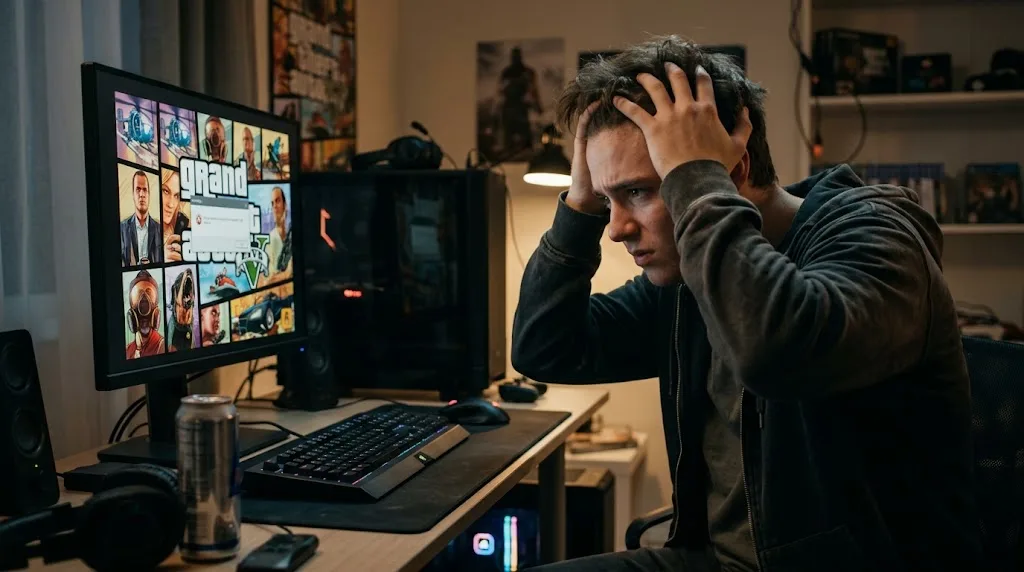

GTA 5 is one of the most popular open-world games, but technical problems can sometimes prevent players from enjoying it. Whether you are experiencing startup errors, sudden crashes, freezing, or connection failures, these issues can interrupt your gaming experience. Fortunately, many common GTA 5 problems can be resolved through simple troubleshooting steps without requiring advanced technical knowledge.
If GTA 5 is not working on your PC, PlayStation, or Xbox, the problem may involve outdated software, corrupted game files, incompatible settings, or network connectivity. Identifying the actual cause is important because different errors require different solutions. Applying the correct fixes can help restore stable gameplay and prevent the same problems from returning.
This guide explains how to fix GTA 5 not working issues, including launching problems, black screens, poor performance, and GTA Online errors. You will also learn practical troubleshooting methods for different gaming platforms. Follow these solutions to get Grand Theft Auto V running smoothly again.
Why Is GTA 5 Not Working?
GTA 5 may stop working because of software conflicts, outdated graphics drivers, corrupted installation files, or insufficient system resources. Sometimes, a recent game update or operating system change can create compatibility problems. Understanding these possible causes helps players identify the source of the issue and select an appropriate solution instead of repeatedly reinstalling the game.
Hardware limitations can also affect GTA 5 performance, especially when graphics settings exceed the capabilities of your computer. Insufficient available memory, limited storage space, and overheating components may cause freezing or unexpected shutdowns. Checking your system specifications and monitoring hardware performance can reveal problems that prevent the game from running consistently during demanding gameplay situations.
Connection problems are another common reason GTA Online may fail while Story Mode continues working normally. Network instability, service outages, authentication errors, and restrictive router settings can interrupt online sessions. Before changing important system settings, determine whether the issue affects the entire game or only its multiplayer features to avoid unnecessary troubleshooting.
How to Fix GTA 5 Not Launching on PC
If GTA 5 is not launching on your computer, begin by restarting your PC and opening the game through its official launcher. Temporary background processes or incomplete software updates can interfere with startup. A complete restart refreshes running services and may resolve minor software conflicts that prevent Grand Theft Auto V from opening normally.
Next, check whether the Rockstar Games Launcher, Steam, or Epic Games Launcher requires an update. Outdated launcher software may experience authentication problems or fail to start the game correctly. Install available updates, confirm that your account is signed in, and launch GTA 5 directly from the platform where you purchased or installed it.
If the game still refuses to open, temporarily close unnecessary background applications and check for conflicting overlays or modifications. Security software may occasionally interfere with legitimate game components, so review its notifications rather than disabling protection entirely. You should also confirm that your PC meets the requirements for the specific GTA 5 edition you installed.
Fix GTA 5 Crashing During Gameplay
GTA 5 crashing during gameplay can happen because of outdated graphics drivers, unstable hardware settings, damaged game files, or software conflicts. If the game closes unexpectedly, observe whether crashes occur during specific missions or after extended playing sessions. Identifying a consistent pattern can help determine whether the issue involves performance limitations, game installation problems, or a particular application.
Updating your graphics card driver is a useful troubleshooting step when GTA 5 crashes repeatedly. Visit your graphics hardware manufacturer’s official software utility and install a compatible driver version. After updating, restart your computer and test the game again using moderate graphics settings to determine whether the crashes have stopped.
Players should also check system temperatures and avoid running unnecessary resource-intensive applications while gaming. Excessive heat or unstable overclocking settings can contribute to unexpected crashes and system instability. If problems continue, restore hardware settings to their normal supported values and use the game’s file verification feature to check for missing or damaged installation files.
How to Fix GTA 5 Stuck on Loading Screen
A GTA 5 loading screen that never finishes can be caused by damaged files, slow storage performance, background software conflicts, or temporary launcher problems. First, allow the game a reasonable amount of time to complete its initial loading process. If the loading screen remains unchanged, close the game normally where possible and restart your computer before trying again.
If the issue occurs specifically when entering GTA Online, check whether Rockstar’s online services are experiencing problems. A server outage or unstable internet connection can interrupt the transition into an online session. Try opening Story Mode first to determine whether the game itself works, then attempt to access multiplayer once your connection is stable.
Another useful solution is to verify the installed game files through your gaming platform. This process checks for missing or corrupted installation components and replaces supported files when necessary. If you use game modifications, consider testing a clean installation because incompatible modifications may prevent GTA 5 from completing its normal loading process.
Fix GTA 5 Black Screen on Startup
A black screen when launching GTA 5 may indicate display configuration problems, graphics driver issues, or conflicts involving fullscreen settings. The game might continue running in the background while failing to display an image correctly. Start by checking that your monitor is connected properly and that your computer is using the intended display device.
On Windows, pressing Alt and Enter may switch the game between fullscreen and windowed modes when the application remains responsive. This can sometimes resolve display problems caused by incompatible resolution or fullscreen settings. Once the game becomes visible, open its graphics menu and select a screen resolution and display mode supported by your monitor.
If the black screen continues, update your graphics drivers and temporarily close applications that add visual overlays to games. You can also check whether your graphics settings were changed recently. Resetting incompatible display preferences through supported configuration options may restore normal startup without requiring a complete game reinstallation or unnecessary operating system changes.
How to Fix GTA 5 Lagging and Low FPS
Low FPS and gameplay lag can make GTA 5 feel slow, especially during driving, crowded scenes, or visually demanding missions. Performance problems often appear when graphics settings are too demanding for the available hardware. Reducing visual effects, shadow quality, population density, and resolution can improve frame rates while maintaining a reasonable gaming experience.
Background programs can also consume memory, processor capacity, and graphics resources needed for smooth gameplay. Close unnecessary browser tabs, downloads, recording tools, and applications before launching GTA 5. Keeping sufficient free storage space and allowing your operating system to manage virtual memory can also help reduce performance problems caused by resource limitations.
For additional improvement, check whether your computer is using a suitable power mode and the correct graphics processor. Laptop users should ensure their device receives appropriate power when playing demanding games. If GTA 5 continues to stutter, monitor system performance to identify whether the processor, graphics card, memory, or storage is creating a bottleneck.
Fix GTA Online Not Working or Connecting
GTA Online connection errors can prevent players from joining sessions, completing activities, or accessing multiplayer features. These problems may appear when Rockstar services are unavailable, your internet connection becomes unstable, or account authentication fails. Before changing your network configuration, check Rockstar’s official service status to determine whether the issue affects other players as well.
If the servers are operating normally, restart your gaming device and internet router to refresh the connection. You should also check whether other online applications work reliably on the same network. Whenever possible, use a stable wired connection because Ethernet can reduce wireless interference and improve consistency during online gaming sessions.
Network Address Translation, commonly called NAT, can also affect multiplayer connectivity and communication between players. A restrictive NAT configuration may cause session timeouts or difficulty joining other users. Check your platform’s network diagnostics and consult your internet provider if restrictions persist, rather than changing firewall settings or router configurations without understanding their security implications.
How to Repair Corrupted GTA 5 Game Files
Corrupted or missing game files can cause GTA 5 startup failures, freezing, graphical errors, and unexpected crashes. These problems may occur after interrupted downloads, incomplete updates, or storage-related issues. Fortunately, popular PC gaming platforms provide built-in file verification tools that can identify damaged installation components and restore the necessary game data automatically.
If you installed GTA 5 through Steam, open your game library, access the game’s Properties, and locate the installed files verification option. Epic Games Launcher provides a similar verification feature through the game’s management menu. For Rockstar Games Launcher installations, open Settings, select GTA 5 under installed games, and choose the option to verify file integrity.
Allow the verification process to finish completely before launching the game again. Depending on your installation and the number of affected files, the platform may download replacement data. This method is generally preferable to immediately reinstalling GTA 5 because it targets installation problems while avoiding an unnecessary complete download of the entire game.
Fix GTA 5 Problems on PlayStation and Xbox
GTA 5 problems on PlayStation and Xbox may include freezing, unexpected crashes, loading failures, or multiplayer connection errors. These issues can result from outdated console software, incomplete game updates, insufficient storage, or temporary system problems. Restarting the console and checking for updates should be your first troubleshooting steps before considering more extensive solutions.
Check that your console has enough available storage for game updates and normal system operations. A nearly full storage device can prevent updates from installing correctly and contribute to other performance problems. If the game is installed on external storage, verify that the device is connected properly and supported by your console.
Console users should also confirm that their game edition is compatible with their specific PlayStation or Xbox model. If problems continue, follow the platform’s official troubleshooting guidance for clearing temporary cache data or repairing an installation. Avoid deleting saved game data without first confirming that your progress is backed up and recoverable.
How to Fix GTA 5 Audio and Controller Problems
Audio problems in GTA 5 can include missing dialogue, distorted effects, silent cutscenes, or sound playing through the wrong device. Begin by checking the game’s audio settings and your computer or console volume controls. Confirm that the correct speakers or headphones are selected and that audio output has not been muted accidentally.
On PC, outdated audio drivers or conflicting sound applications may also affect gameplay sound. Updating compatible drivers and restarting the game can resolve certain playback problems. If you use Bluetooth headphones, check that the device is properly connected and selected as the intended output because connection changes can sometimes interrupt audio during gameplay.
Controller issues can create another frustrating experience when buttons stop responding or inputs behave unexpectedly. Check the controller connection, battery level, and relevant platform settings before making changes. On PC, conflicting controller-mapping applications may interfere with input detection, so test the controller using your gaming platform’s supported configuration options and default button settings.
Fix Rockstar Games Launcher and BattlEye Errors
Rockstar Games Launcher errors can prevent GTA 5 from opening even when the installation files are otherwise working correctly. Common causes include outdated launcher components, authentication problems, interrupted updates, and conflicting background applications. Restart the launcher, check your internet connection, and install available software updates before attempting more complicated troubleshooting procedures.
On supported PC versions of GTA Online, BattlEye anti-cheat software is required to connect to official multiplayer services. If BattlEye fails to initialize or reports an error, close GTA 5 and confirm that the feature is enabled in the Rockstar Games Launcher. You should also verify the game files and remove incompatible modifications that may interfere with normal operation.
Security software conflicts can occasionally prevent legitimate launcher or anti-cheat components from functioning correctly. Review any security notifications and ensure the game files originate from a trusted installation platform. Avoid downloading unofficial replacement files or disabling essential security protections, because these actions may create additional technical problems and expose your computer to unnecessary risks.
How to Prevent GTA 5 Problems in the Future
Preventing recurring GTA 5 errors begins with keeping your operating system, graphics drivers, game launcher, and installation files updated. Software updates often include compatibility improvements, performance adjustments, and fixes for known technical problems. Installing updates through official channels reduces the likelihood of damaged files and helps maintain stable gameplay across future game versions.
Regular system maintenance can also reduce crashes, freezing, and performance issues during longer gaming sessions. Maintain sufficient available storage, keep computer ventilation unobstructed, and avoid running excessive background applications. If you use game modifications in supported single-player environments, ensure they remain compatible with your installed version and keep separate backups of important saved data.
Finally, pay attention to recurring warning messages instead of ignoring problems until the game becomes unusable. Record specific error codes, note when problems occur, and test one troubleshooting change at a time. This approach makes it easier to identify successful fixes and prevents unnecessary adjustments that could introduce additional software or configuration issues.
Conclusion
GTA 5 not working can be frustrating, but many common problems have straightforward solutions. Startup failures, crashing, freezing, black screens, and performance issues can often be resolved by updating drivers, verifying game files, or adjusting incompatible settings. Identifying whether the problem comes from your device, game installation, or network connection is the most important first step.
For GTA Online problems, checking service availability and maintaining a stable internet connection can help reduce unnecessary troubleshooting. PC players should also pay attention to launcher updates, supported anti-cheat requirements, and potential software conflicts. Console users can benefit from keeping their systems updated, maintaining adequate storage space, and following platform-specific troubleshooting instructions.
If basic solutions do not work, investigate the exact error message and contact the appropriate official support team for further assistance. Avoid repeatedly reinstalling the game or making major system changes without identifying a likely cause. With careful troubleshooting and regular maintenance, you can reduce technical interruptions and enjoy a smoother GTA 5 gaming experience.
Frequently Asked Questions (FAQs)
1. Why is GTA 5 not launching on my PC?
GTA 5 may fail to launch because of outdated drivers, corrupted game files, launcher problems, or incompatible software. Restart your computer, update the launcher, and verify game files to resolve common startup errors.
2. How do I fix GTA 5 crashing repeatedly?
Update your graphics drivers, reduce demanding graphics settings, and close unnecessary background programs. Verify the installation files and check for overheating or unstable hardware settings if the crashes continue.
3. Why is GTA Online not connecting?
GTA Online connection failures may result from service outages, unstable internet, authentication problems, or restrictive NAT settings. Check Rockstar’s service status, restart your router, and test your network connection before changing advanced settings.
4. How can I fix GTA 5 stuck on the loading screen?
Restart the game, verify its installation files, and check your system resources. If the problem affects only GTA Online, investigate your internet connection and whether Rockstar’s online services are available.
5. Can I fix GTA 5 without reinstalling the game?
Yes, many GTA 5 problems can be fixed without reinstalling. Updating drivers, restarting the launcher, adjusting graphics settings, verifying game files, and resolving network issues are useful solutions to try first.